2D single particle in cold flow
This tutorial sets up a simple non-reactive 2D airflow simulation around a stationary sphere in DINO.The user get familiar with the following steps:
- Set up a 2D flow domain in DINO.
- Define a stationary object inside the computational domain.
- Specify the initial and boundary conditions for a non-reactive airflow simulation.
- Set the grid, time step, and simulation time.
- Obtain and visualize the velocity and pressure distributions around the object.
When a solid object is placed in a fluid flow,it changes the surrounding velocity and pressure distribution. As the flow approaches the obstacle , it slows down, resulting in high pressure region at the front of the obstacle.The fluid then accelerates as it moves around the obstacle.A flow separation can occur behind the object.This separation can create a wake region with lower velocity and pressure variations downstream of the object.
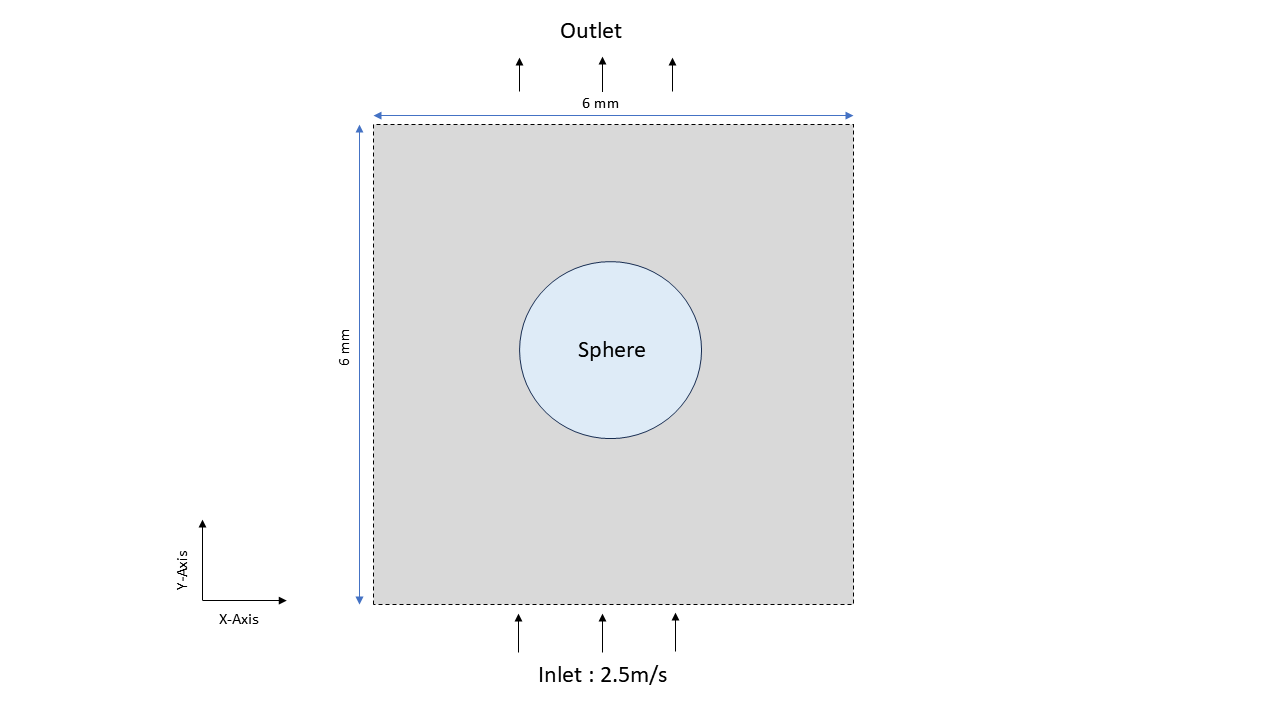
The simulation considers a 2D flow domain of 6mm * 6 mm * 2.5mm discritized using 512 * 513 * 1 nodes along x,y and z directions respectively.Air enters thedomain with an initial velocity of 2.5 m/s along the y direction at a temperature of 500k and 1 atm pressure.Periodic boundary conditions encloses the domain.A stationary sphere is located at the centre of the domain.In the 2D computational plane, the sphere is represented by a circular obstacle. The main objective is to investigate how the presence of the sphere influences the velocity and pressure distributions around the sphere.
Creating 2D_DOMAIN project directory
In the dino_runs directory create a new project directory named 2D_DOMAIN.
Creating DINO_IN file
The DINO_IN file is the main input file used to set up a DINO simulation. It contains different namelist sections . For the 2D flow case,the DINO_IN file from first_simulation is modified.
To copy the DINO_IN file from first_simulation to 2D_DOMAIN,
Inorder to modify the DINO_IN file ,open it using a text editor of your choice (here we use vim).
First we need to create a domain of 6mm * 6 mm * 2.5mm.For this purpose we use DIMENSIONS section.The number of grid points in the cartesian coordinate iscontrolled by DIMX_TOTAL,DIMY_TOTALand DIMZ_TOTAL.Along the x and y directions there are 512 and 513 nodes respectively,while in z direction there isonly one node.This creates a two dimensional domain.
The following lines creates the corresponding namelist section and specify the required variables for the domain size.Make sure that every variable is separated by a comma and the namelist ends with a slash.
Hint
See all namelist sections and there corresponding parameters in the description of main-input-file.
&NML_DIMENSIONS
  LENGTH_X=0.6D-2,
  LENGTH_Y=0.6D-2,
  LENGTH_Z=0.25D-2,
  DIMX_TOTAL=512,
  DIMY_TOTAL=513,
  DIMZ_TOTAL=1,
/
Now for the grid generation ,we use the GRIDDING namelist section, and DINO is instructed to generate an equidistant Cartesian grid in all directions by setting the variable GRID_TYPE to 1:
For the domain we need to define the boundary conditions.Here we set the back ,front and sides of the domain as periodic boundary.Boundary conditionas at top and bottom are defined as subsonic inlet(value 1) and subsonic outlet (value 2) .A periodic boundary connects opposite sides of the computational domain, so flow leaving one side re-enters through the other.Note that the boundary variables only accept integer as values. The periodic boundary condition corresponts to the value 3.
Hint
For defining other boundary conditions use different values between 0 and 10. The corresponding boundary conditions to the values are descibed here.
Next we need to define the time step control parameters and time integration scheme.In the CONTROL and TIME_INTEGRATION namelist , define an initial time step of 1.0D-8 s, a minimum time step of 1.0D-10 s and a maximum time step of1.0D-3 s with 4th order explicit runge-kutter integration sheme. Set the timeend as 60s.
&NML_CONTROL
 INIT_TIMESTEP=1.0D-8,
 TSTEP_MIN=1.0D-10,
 TSTEP_MAX=1.0D-3,
 TIME_END=60.D0,
 WCT_LIM="50:00:00",
 CFL_LIM=0.2D0,
 CFL_CTRL=.true.,
 /
 &NML_TIME_INTEGRATION
 INTEGRATION_SCHEME=1,
 /
Hint
INTEGRATION_SCHEME only accepts integers as input values. Use a value between 1 and 5 for different time integration schemes. Find the description of the different values here.
The NML_INITIALIZE section defines the initial pressure, temperature, and velocity of the flow. air_cold is selected as the gas model for non-reactive air.
&NML_INITIALIZE
INIT_TYPE=0,
INIT_PRESSURE=101325.D0,
INIT_TEMPERATURE=500.D0,
SOLID_TEMPERATURE=500.D0,
INIT_XVEL=0D0,
INIT_YVEL=2.5D0,
INIT_ZVEL=0.D0,
GAS_PHASE(1)='air_cold',
GAS_PHASE(2)='O2:1.0, N2:3.762',
/
Since no reaction is considerd in this study, deactivate reaction for the flow in the NML_REACTION section by setting the variable REACTIVE=.FALSE..
The NML_IMMERSED_BOUNDARY section defines the solid obstacle inside the flow domain .The Immersed Boundary Method (IBM) is used to represent solid objects
inside a Cartesian computational grid without generating a body-fitted mesh.As shown in the figure ,grid points are classified as fluid points,solid points ,and gohst points. Grid points near the solid surface are treated as ghost points, and their values are calculated using nearby fluid points and the prescribed boundary condition at the solid surface. In this way, conditions such as zero velocity at a stationary wall can be imposed while keeping the original rectangular grid. IB_GHOST=.TRUE. activates the ghost-cell immersed-boundary method, while IB_NUMBER=1 specifies one obstacle and IB_RADIUS=252D-6 sets its radius to 252 µm (0.252 mm).
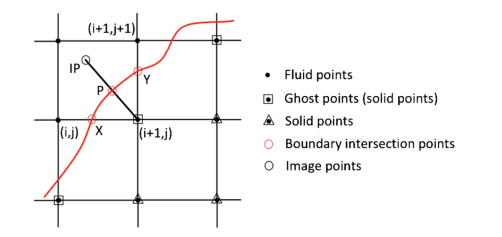
figure :Conventional gohst-cell IBM (two-dimensional case)
&NML_IMMERSED_BOUNDARY
IB_GHOST=.TRUE.
IB_NUMBER=1,
IB_RADIUS=252D-6,
IB_FLOW='external_flow',
ISOTHERMAL_IBM=.TRUE.,
/
Hint
Find the description of IMMERSED_BOUNDARY section here.
The rest of the parameters which are not required you dont need to mention them in your DINO_IN file. The only step which is necessery is tomention all the rest of the required namelists as described below:
&NML_DECOMPOSITION
/
&NML_POISSON_SOLVER
/
&NML_RESTART
/
&NML_RADIATION
/
&NML_POD
/
&NML_TRANSPORT
/
&NML_GRAVITY
/
&NML_VORTEX
/
&NML_TWOPHASE
/
&NML_TURBULENCE
/
&NML_NANOPARTICLES
/
DINO_IN file contains all the necessary settings to run the simulation. Before starting the simulation, the required output data should be specifiedin the SAVING namelist.
&NML_SAVING
SAVING_TYPE=1,
SAVING_RESTART_INTERVAL=1500,
SAVING_AVERAGE_INTERVAL=10000,
SAVING_CTRL_MAX_MIN_INTERVAL=50,
SAVING_HDF5_FULL=.true.,
SAVING_CTRL_HDF5_INTERVAL=100,
SAVING_HDF5_START=0,
/
Running DINO
Now your simulation is ready to run. To launch the calculation, go to your project folder 2D_DOMAIN and run the executable file DINO_V<version>.e. The executable file will use DINO_IN in the current directory as the default input file. If a different input file should be used, the path to that file can begiven as the first command line argument to the DINO executable.
To run in parallel with MPI, type
If the case is to be run on a supercomputer or cluster, a job command file can be created and used, depending on the server/machine where the simulation is to be performed. For more information about these scripts, you should contact your institute/company/HPC help desk.
For Sofja users at OVGU
You can use the following procedure to run the simulation with Slurm job manager on Sofja.
Copie the following lines into yourlaunch_script.sh:
#!/bin/bash
#SBATCH -J DINOfirstsim
#SBATCH -N 3
#SBATCH --ntasks-per-node 32
#SBATCH --cpus-per-task=1
##SBATCH --cpu-bind=threads
##SBATCH -d singleton
#SBATCH --time 06:00:00
#SBATCH --mem 256000
#SBATCH -p  Big
##WORKINGDIRECTORY="/beegfs2/scratch/<user>/dino_runs/2D_DOMAIN"
module purge
module load mpi/openmpi-4.1
source /beegfs1/software/DINO/env
mpirun -n $SLURM_NTASKS  /beegfs1/software/DINO/dino/bin/dino_v10.0.0.e
Make sure that the path to working directory and to the DINO executable is correct. Save launch_script.sh and run DINO with following command:
Output and post-processing
After the simulation is finished, the generated output files can be analyzed using VisIt.The DINO simulation output files are usually stored on the cluster. To visualize them in VisIt on your local computer, first copy the required HDF5 files using scp.
VisIt is a visualization and post-processing software that helps you view the simulation results in a graphical form. With VisIt, you can display quantities such as velocity, pressure, and temperature and investigate how they change inside the computational domain. This makes it easier to understand and evaluate the flow behavior obtained from the DINO simulation.
Installing VisIt
- Go to the official VisIt download page:
VisIt Releases and Downloads - Select the appropriate version for your operating system.
- Download and run the installer.
- Follow the installation instructions and open VisIt after installation.
After starting VisIt, the main window appears as shown below.
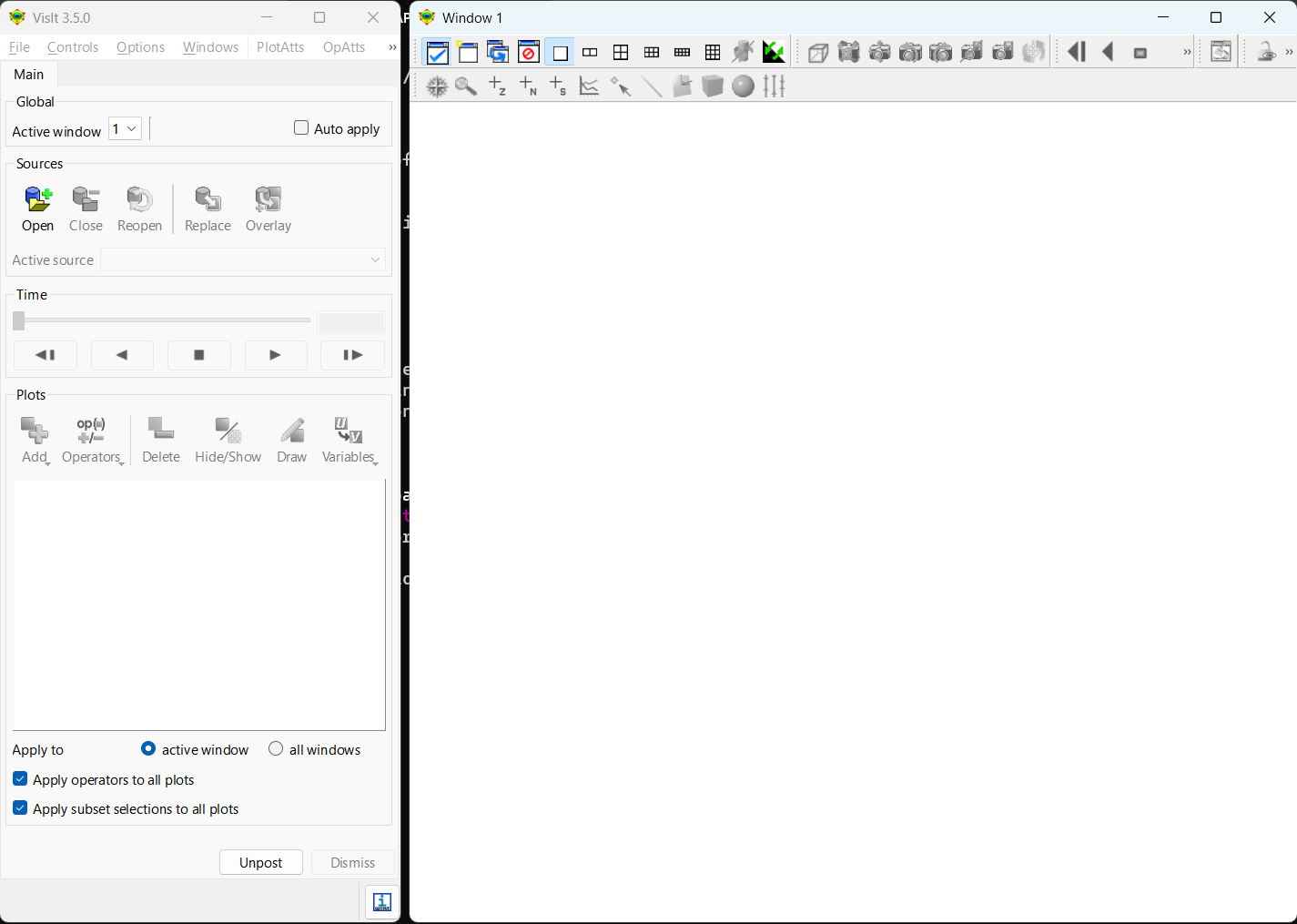
Figure: VisIt main window after startup.
To open the DINO simulation results, go to file and then open file.Then navigate to the folder containing the DINO HDF5 output files and select the required .h5 file.After selecting the file, VisIt loads the database and the available variables can be chosen for visualization.
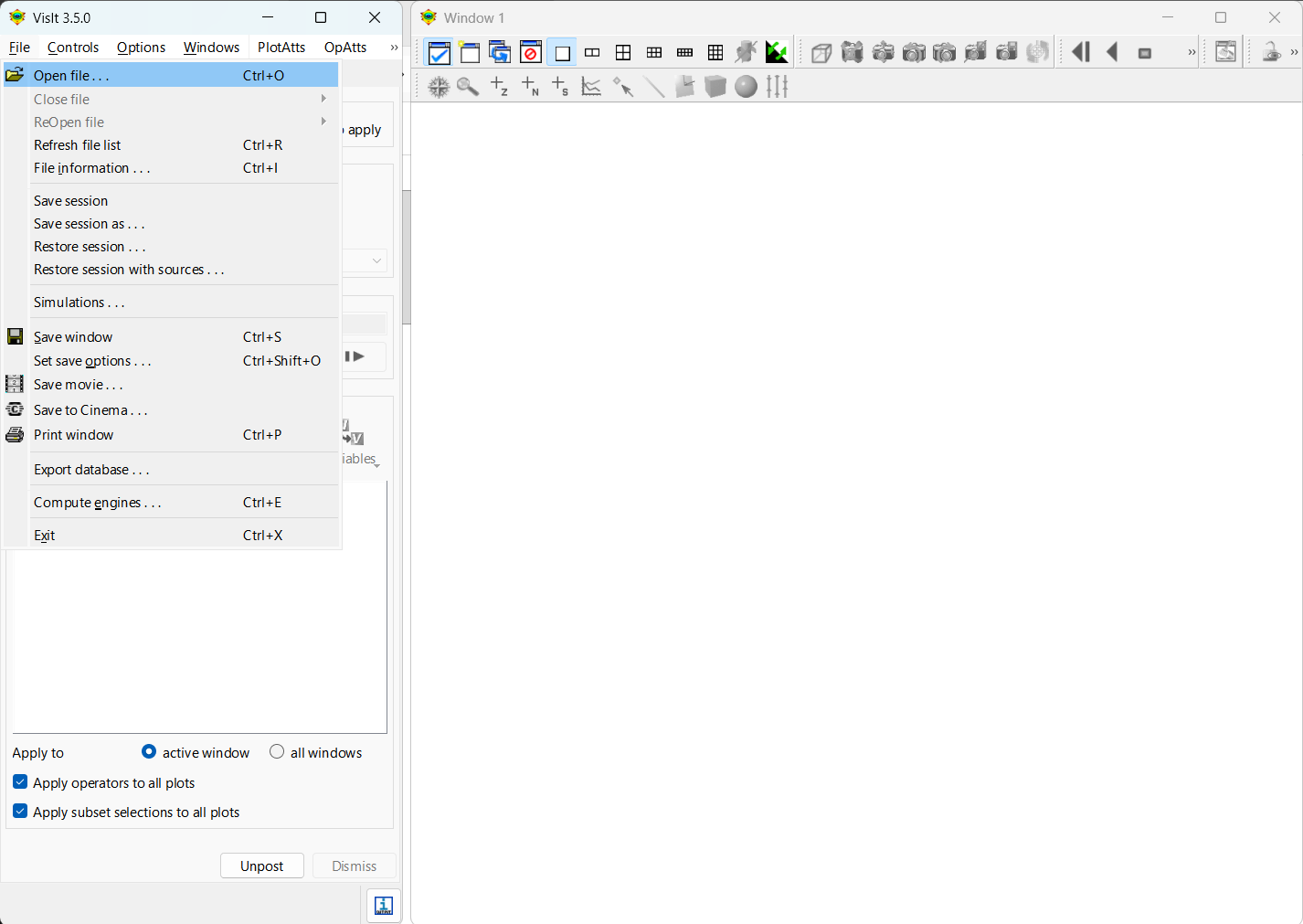
Figure: Opening the DINO output file.
Visualizing the simulation result in VisIt.
After opening the DINO HDF5 database, the available simulation variables can be selected from the Add menu.
- Click Add → Pseudocolor.
- Select the variable you want to visualize, for example:
pfor pressuretemperfor temperature- `velocity magnitude → for velocity
- Click Draw to display the selected variable.
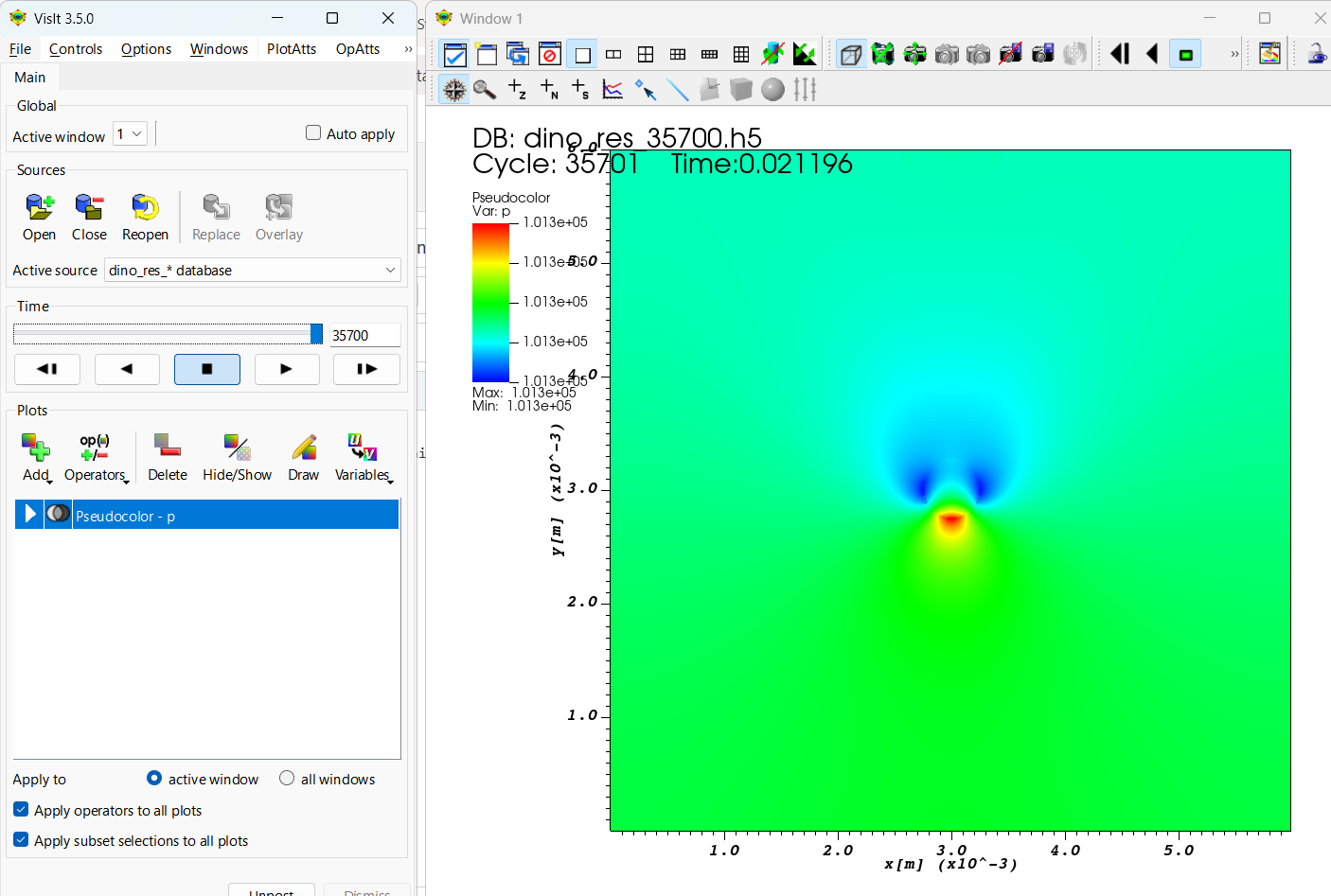
Figure: Pressure distribution in the 2D domain.
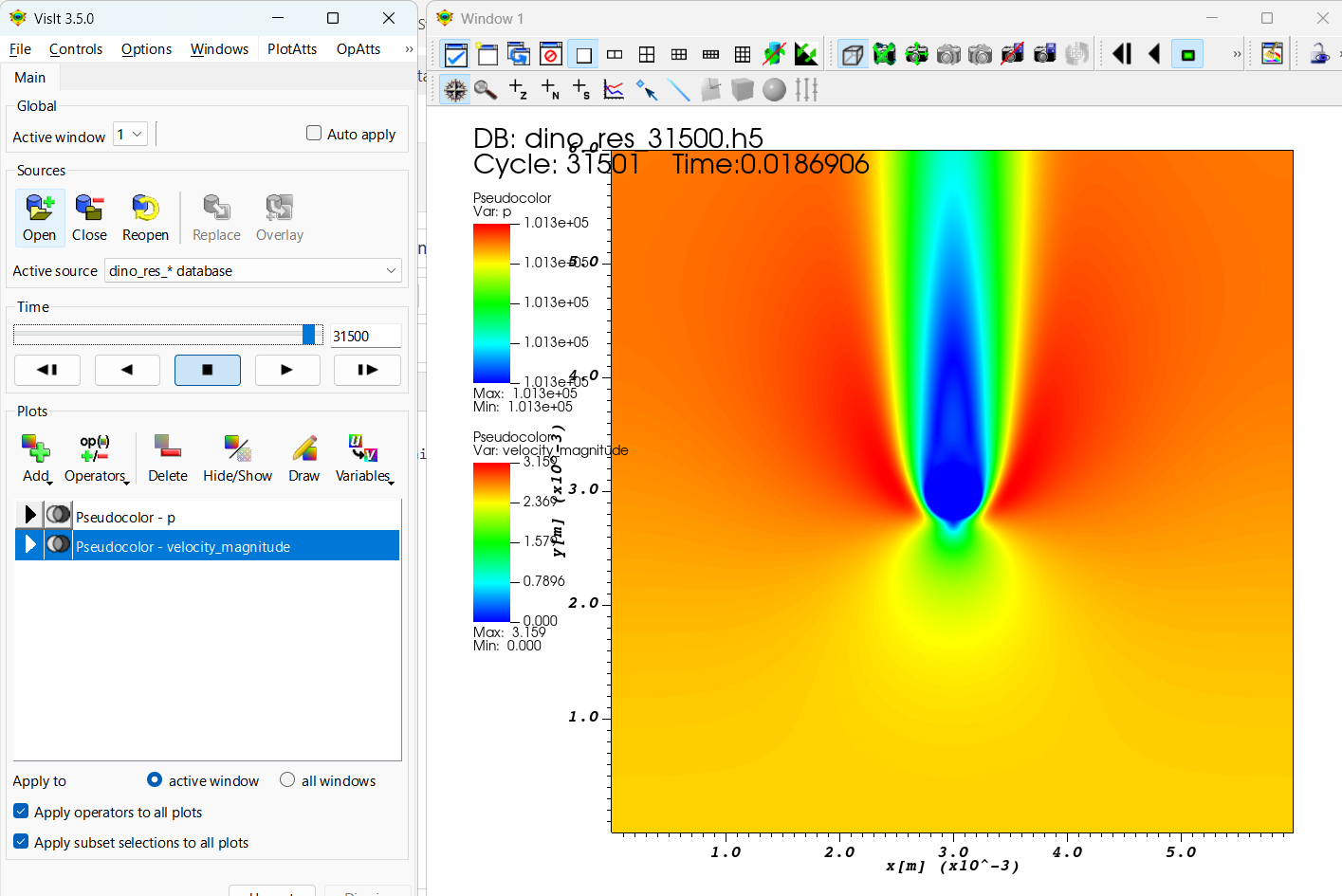
Figure: Pressure distribution in the 2D domain.
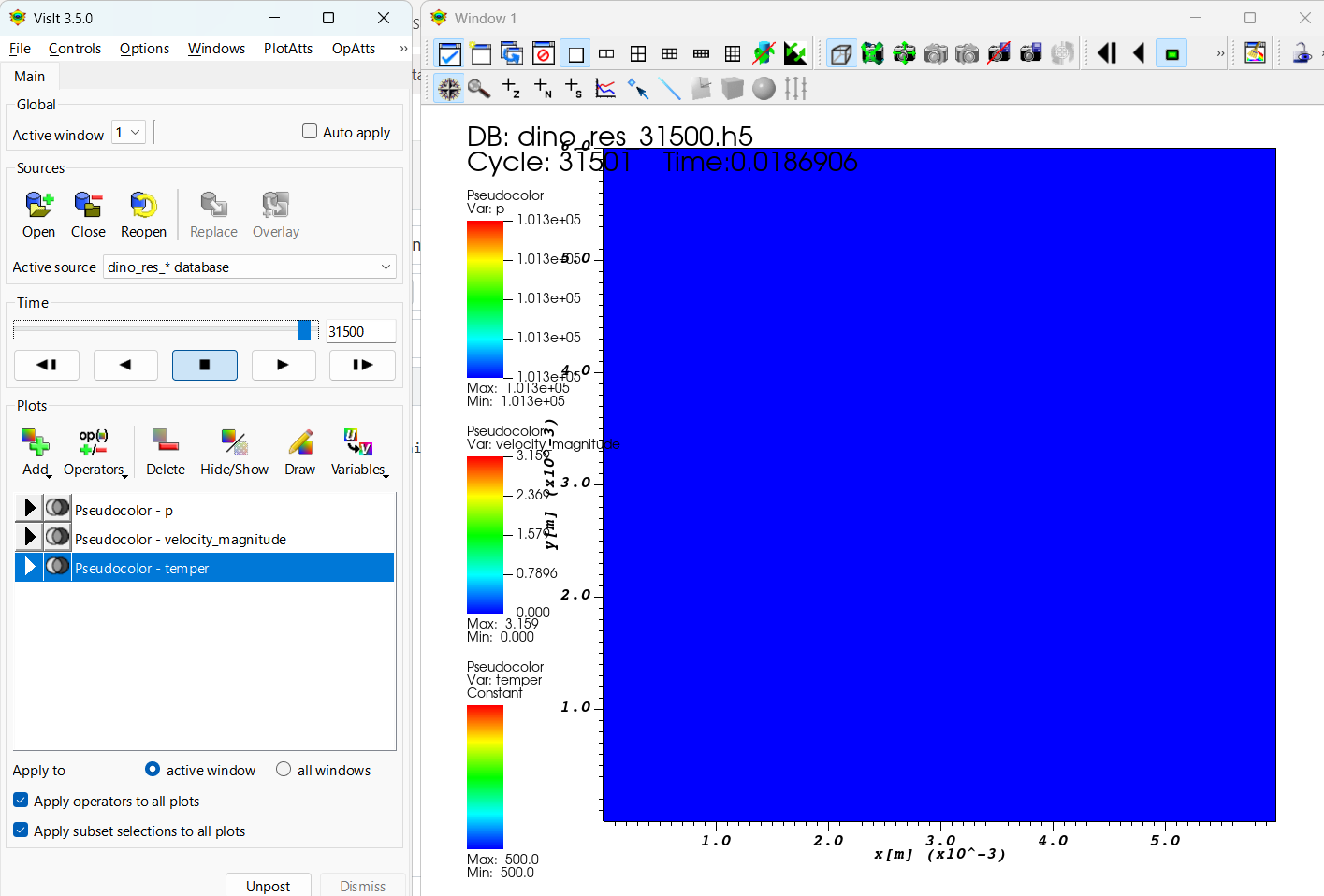
Figure: Temperature distribution in the 2D domain.
Results
The pressure distribution shows a high-pressure region at the front of the sphere, where the incoming flow is slowed down. Behind the sphere, the pressure decreases and a wake region develops.
The velocity magnitude shows that the flow accelerates around the sphere, while a low-velocity region is formed downstream. This low-velocity region represents the wake created by the disturbance of the flow.
The temperature field remains almost uniform throughout the domain because the simulation is non-reactive and no significant heat source is present.